

Marketing and Communications
Video

Templates
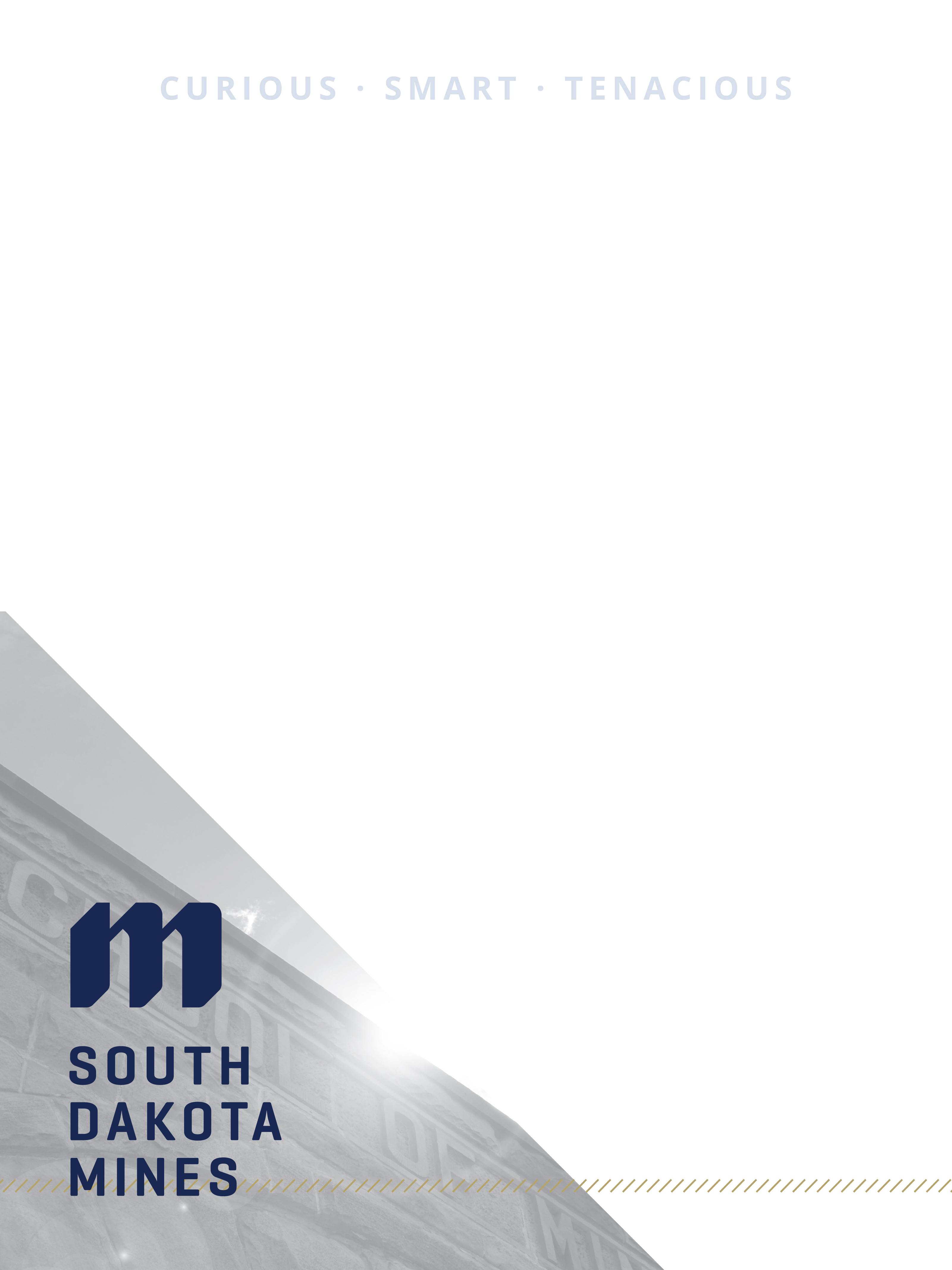
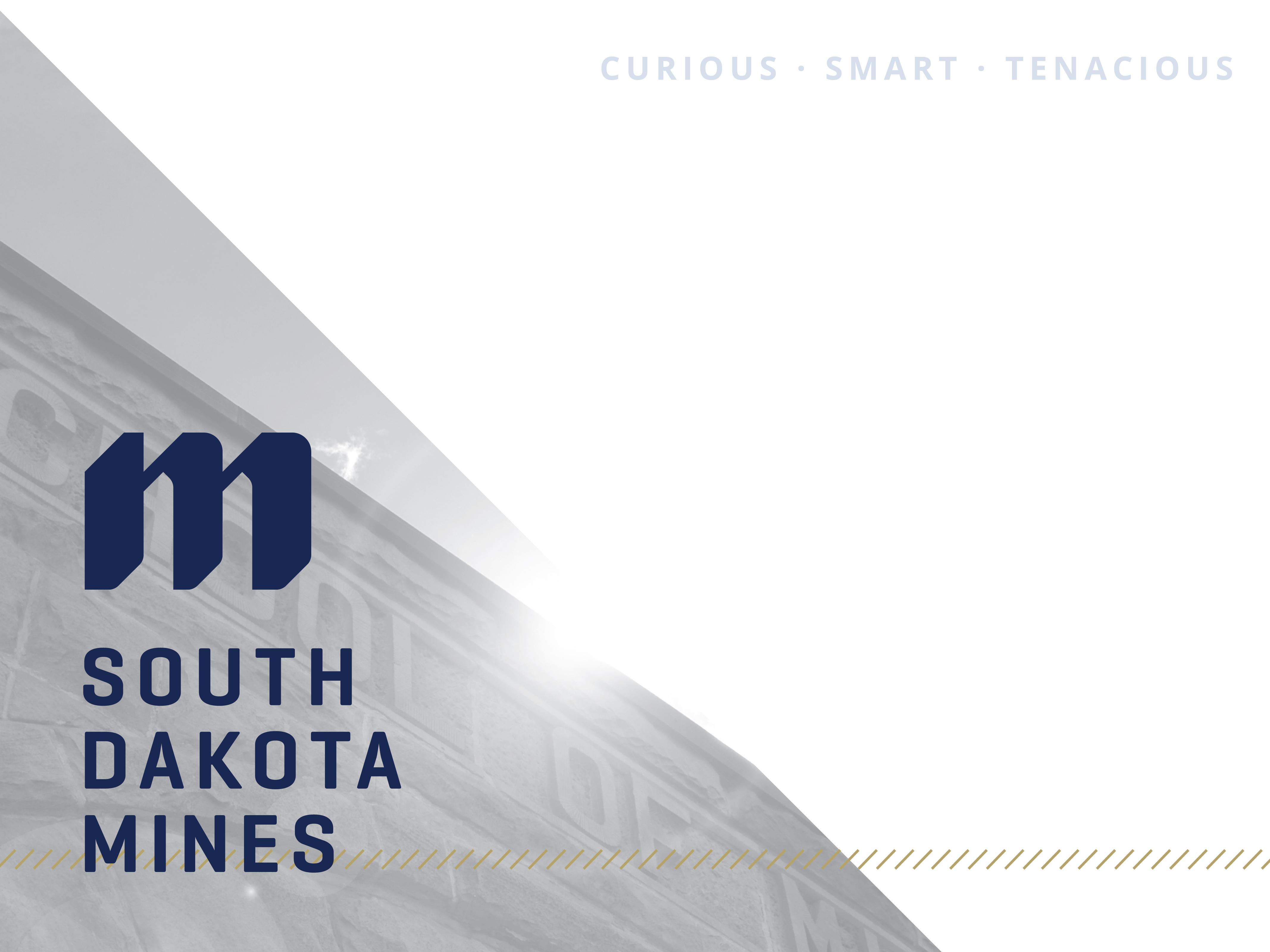
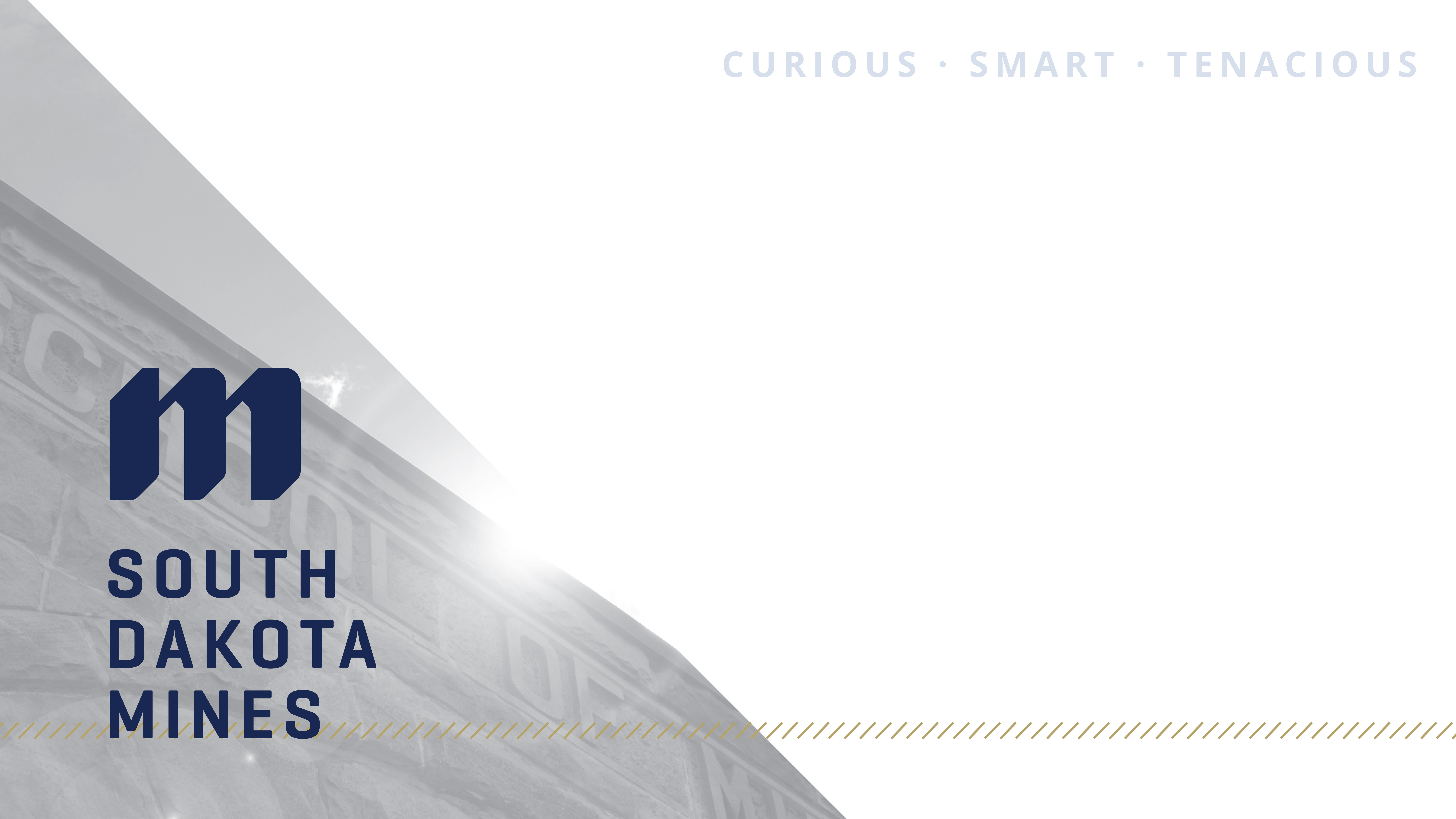
Need to make a simple flyer for an event or announcement? We offer a variety of PowerPoint templates that will help you quickly complete a South Dakota Mines branded flyer. Click on the image (or its title) below, and download the PowerPoint template.
If you have questions or need help with the templates, please emailmarketing@sdsmt.edu.If you have a print project that you need Marketing and Communications to create for you, please use ourJob Requestform.
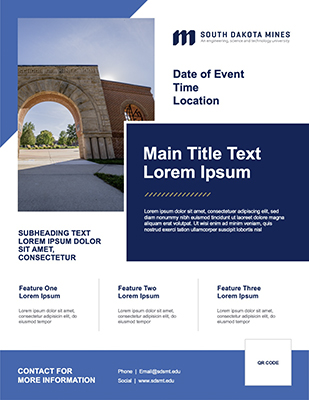
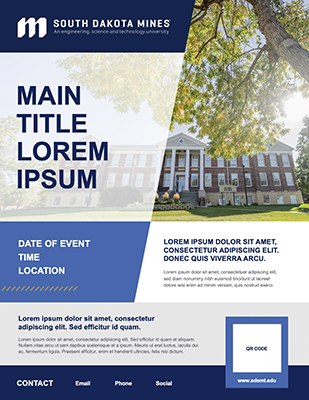
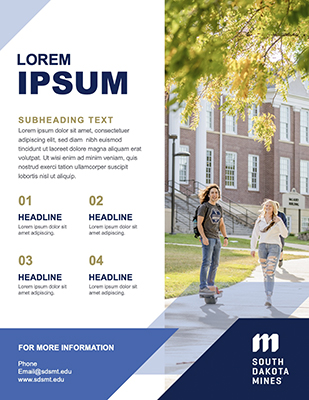
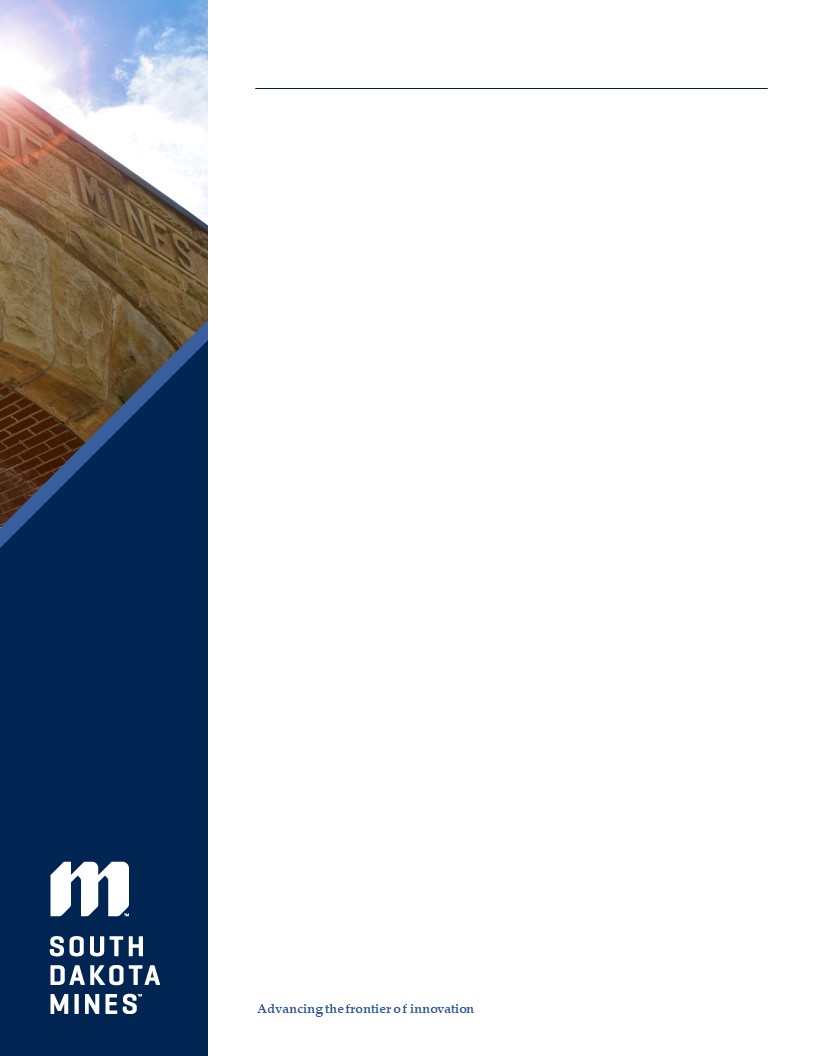
PowerPoint Template 4:3 PowerPoint Template 16:9
How to Use PowerPoint Templates:
- Save the template to your computer.
- Open Microsoft PowerPoint.
- Open the template, and“Save as”to avoid overwriting the file.
- Rename the file,and change the file type to".pptx".
- To add a new slide, click the drop-down arrow to access the different templates. You can also find them under “Layout” on the Home tab.
Students: if you are unable to access the SharePoint folder, please emailmarketing@sdsmt.eduand we can send you the template.





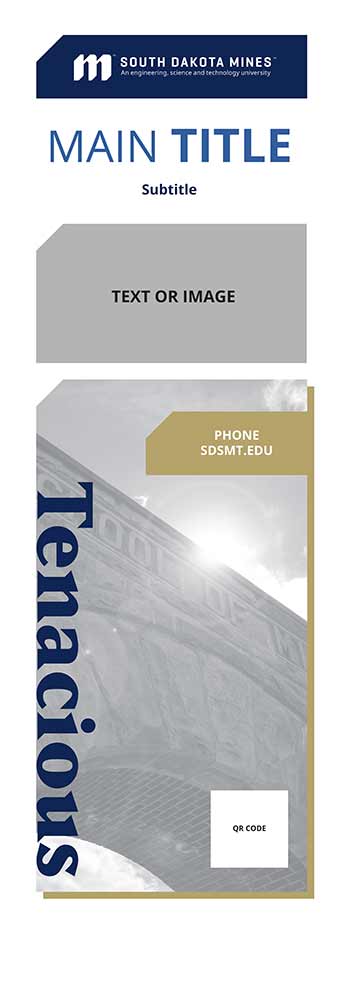
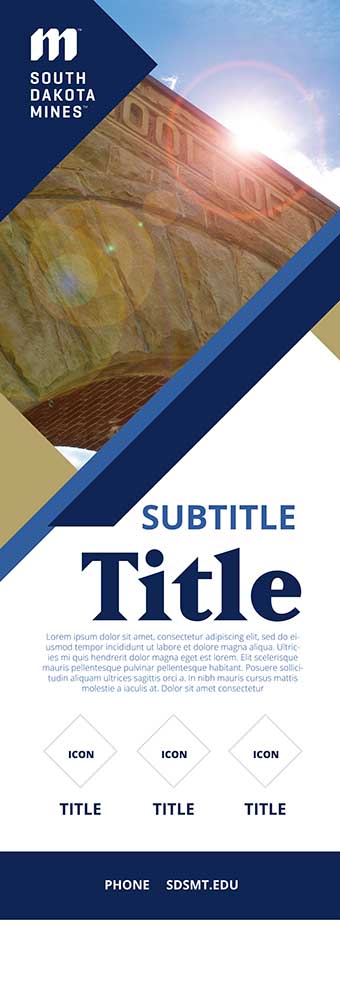
To have a pop-up banner designed, please submit ajob request and mention which design option you would like.
How to Use PowerPoint Templates:
-
Save the template to your computer.
-
Open Microsoft PowerPoint.
-
Open the template, and“Save as”to avoid overwriting the file.
-
Rename the file,and change the file type to".pptx".
-
To add a new slide, click the drop-down arrow to access the different templates. You can also find them under “Layout” on the Home tab.
Contact Us
For general communications inquiries, emailMediaRelations@sdsmt.edu.
Academic Affairs
Phone: (605) 394-5236
molly.moore@sdsmt.edu
Graphic Designer
Phone: (605) 394-6081
Casey.Gregerson@sdsmt.edu
Videographer
Phone: (605) 394-6081
Brian.Hill@sdsmt.edu
Social Media Strategist
Phone: (605) 394-2554
Gillian.Spiva@sdsmt.edu
Web Designer
Phone: (605) 394-6070
Shawn.Lykken@sdsmt.edu
Communications Manager
Phone: (605) 394-6082
michelle.pawelski@sdsmt.edu
Marketing Specialist
Phone: (605) 394-1860
Julie.Gibbons@sdsmt.edu